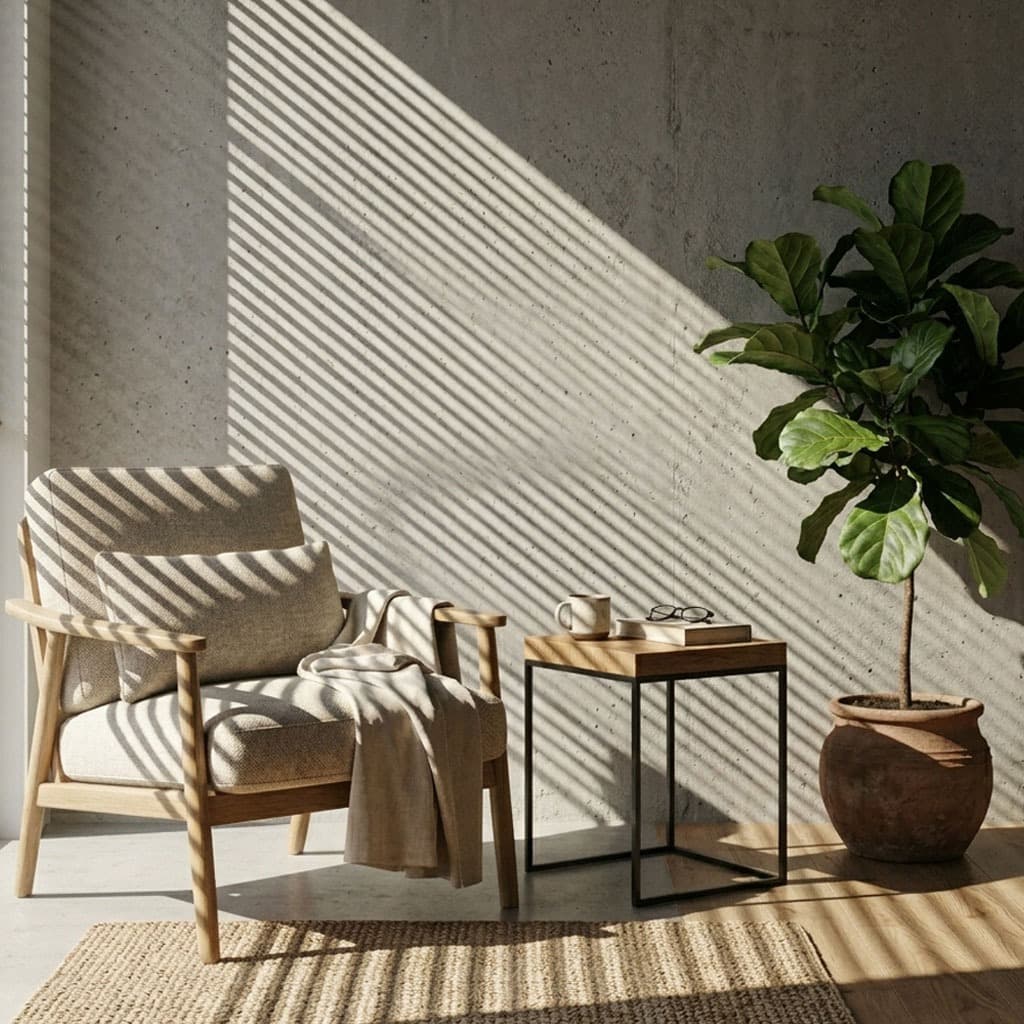
If you are looking to add photorealistic shadows, cinematic window patterns, or beautiful dappled lighting to your Blender scenes, you need a high-quality gobo pack. While there are many scattered textures online, finding a curated, production-ready free gobo pack that is fully compatible with Blender's lighting systems can be a challenge.
What Makes a Good Gobo Texture?
Before you download any free gobos for Blender, it is important to understand what makes a texture suitable for lighting projection.
- High Resolution: A gobo acts as a projector slide. If the texture is low resolution, your shadows will appear pixelated and blocky, ruining the realism of the scene. Look for 2K or 4K textures.
- High Contrast: Gobos need deep, pure blacks to block light and bright whites to let it through. Low contrast textures result in muddy, washed-out shadows.
- Seamless Tiling: For organic elements like tree leaves or caustics, a seamless gobo allows you to repeat the pattern endlessly over large environments without visible edges.
PNG vs EXR for Gobo Lighting
You will often see gobos distributed as JPEGs, PNGs, or EXRs. JPEGs should be avoided due to compression artifacts. PNG is the standard for black-and-white mask gobos because it is lossless and lightweight. EXR files are generally only necessary if the gobo contains color data or high-dynamic-range emission values (like a stained glass window projection).
The Best Free Gobo Pack: GoboVault Discovery
Instead of downloading random images from the internet, we highly recommend the GoboVault Free Discovery Pack. It includes 25 premium, studio-grade gobos—from realistic window blinds and architectural grates to organic tree foliage. There is no credit card required, and the textures have the exact same resolution and lossless quality as our paid GoboVault library.
How to Install Downloaded Packs into Blender
Once you have your free gobos, the best way to use them is through the Blender Asset Browser. Here is the manual installation guide:
- Create a dedicated folder on your hard drive (e.g.,
C:\Blender Assets\Gobos) and place your downloaded textures there. - Open Blender and navigate to Edit > Preferences > File Paths.
- Under Asset Libraries, click the
+button and add your new folder. - Open the Asset Browser in a new panel. You can now drag and drop these textures into your Shader Editor.
Want to skip the manual setup? Download the GoboVault Blender Add-on. It connects directly to our cloud library, allowing you to browse and apply the 25 free gobos directly to your lights with a single click.
To learn more about what gobos actually are and the history behind them, check out our guide: What Is a Gobo?.