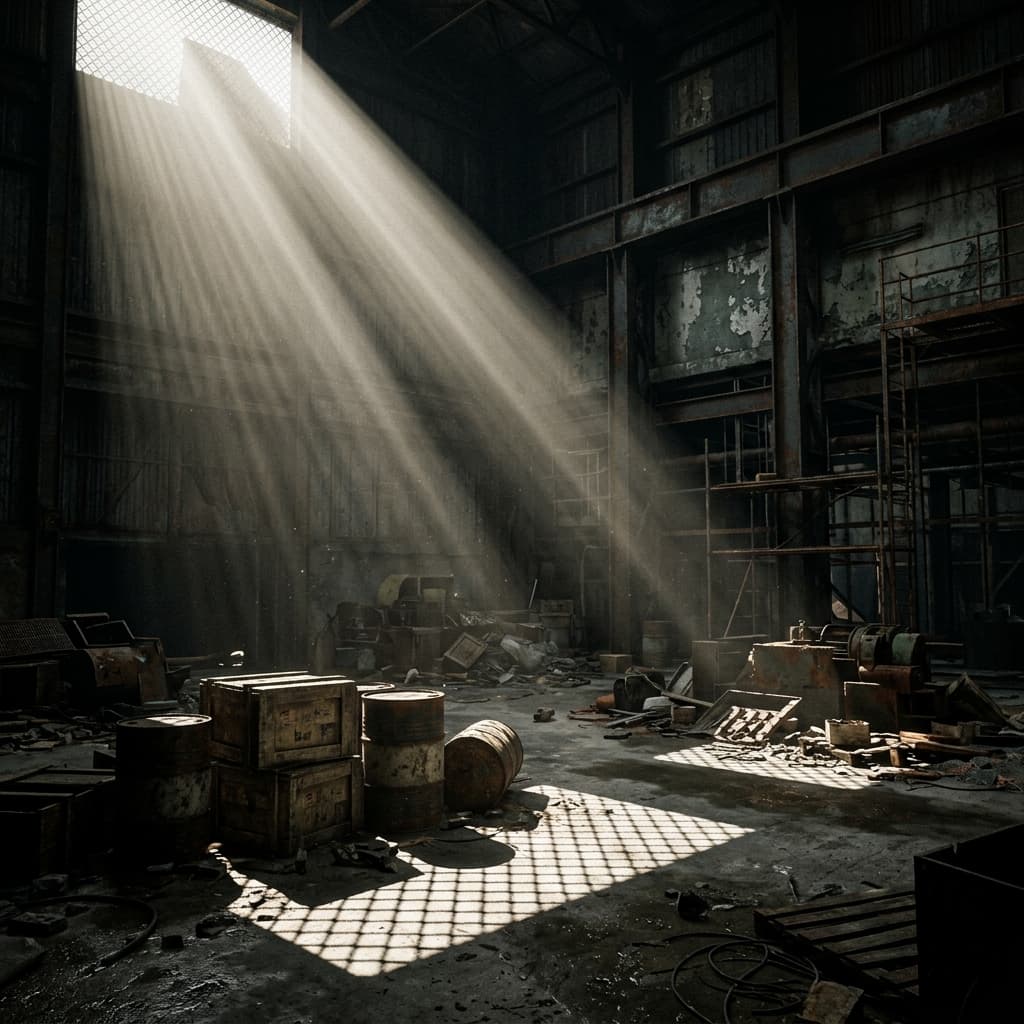
Unreal Engine 5 has completely revolutionized the way we approach real-time rendering. With the introduction of Lumen, global illumination and bounce lighting happen instantly. However, despite these advancements in realistic light transport, the fundamental art of shaping light remains as important as ever. Whether you are building a cinematic cutscene, a photorealistic archviz walkthrough, or a moody game environment, using gobos is essential.
What are Light Functions in UE5?
In Unreal Engine, gobos are implemented using a feature called Light Functions. A Light Function is essentially a specialized Material that is applied directly to a light source (like a SpotLight, PointLight, or RectLight). Instead of rendering the material on a 3D mesh, the engine projects the material's emissive output as a mask over the light's intensity.
This allows you to project highly detailed patterns—like the shadow of a leafy tree, the grid of a chainlink fence, or the intricate stained glass of a cathedral—without incurring the massive performance cost of rendering complex geometry with raytraced shadows.
Creating a Light Function Material
To use GoboVault textures in Unreal Engine 5, you need to create a simple Light Function material:
Always uncheck sRGB on your gobo texture masks in Unreal Engine. Gobos are linear data masks, and applying sRGB curves will drastically warp the gradient falloff of the projected shadows.
- Import the Texture: Download your desired high-resolution PNG gobo from GoboVault and drag it into your UE5 Content Browser. Open the texture settings and ensure sRGB is unchecked if you are using it strictly as a grayscale mask.
- Create a Material: Right-click in the Content Browser and create a new Material. Name it M_LightFunction_Gobo.
- Set Material Domain: Open the Material Editor. In the Details panel, change the Material Domain from Surface to Light Function. You will notice the material output node changes, leaving only the Emissive Color pin active.
- Wire the Nodes: Drag your gobo texture into the graph. Connect the RGB output of the Texture Sample to the Emissive Color pin. Save and compile the material.
Applying the Gobo to a Light
Now that your material is ready, place a SpotLight into your scene. In the Details panel for the SpotLight, scroll down until you find the Light Function section. Expand it, and assign your newly created M_LightFunction_Gobo material to the Light Function Material slot.
Instantly, you will see the light projecting the gobo pattern across your environment. You can adjust the Source Radius of the light to make the projected shadows sharper or softer.
Advanced Techniques: Panning and Animation
One of the massive advantages of using Light Functions in Unreal Engine is that they are fully programmable materials. You can animate the gobo without moving the light itself.
By adding a Panner node and plugging a Time node into it, you can feed the output into the UVs of your Texture Sample. This will cause the gobo pattern to slowly slide across the environment. This technique is widely used in the games industry to simulate clouds passing over the sun (by applying a panning Light Function to the main Directional Light) or the gentle sway of underwater caustics.
Elevate Your Environments with GoboVault
GoboVault provides a massive library of over 360 high-quality, seamless light textures. From abstract sci-fi panels and architectural windows to organic foliage and water caustics, our library provides everything an environment artist or lighting TD needs to bring their UE5 levels to life.
Subscribe to GoboVault today to download the entire library and start using professional-grade gobos in your real-time Unreal Engine projects.