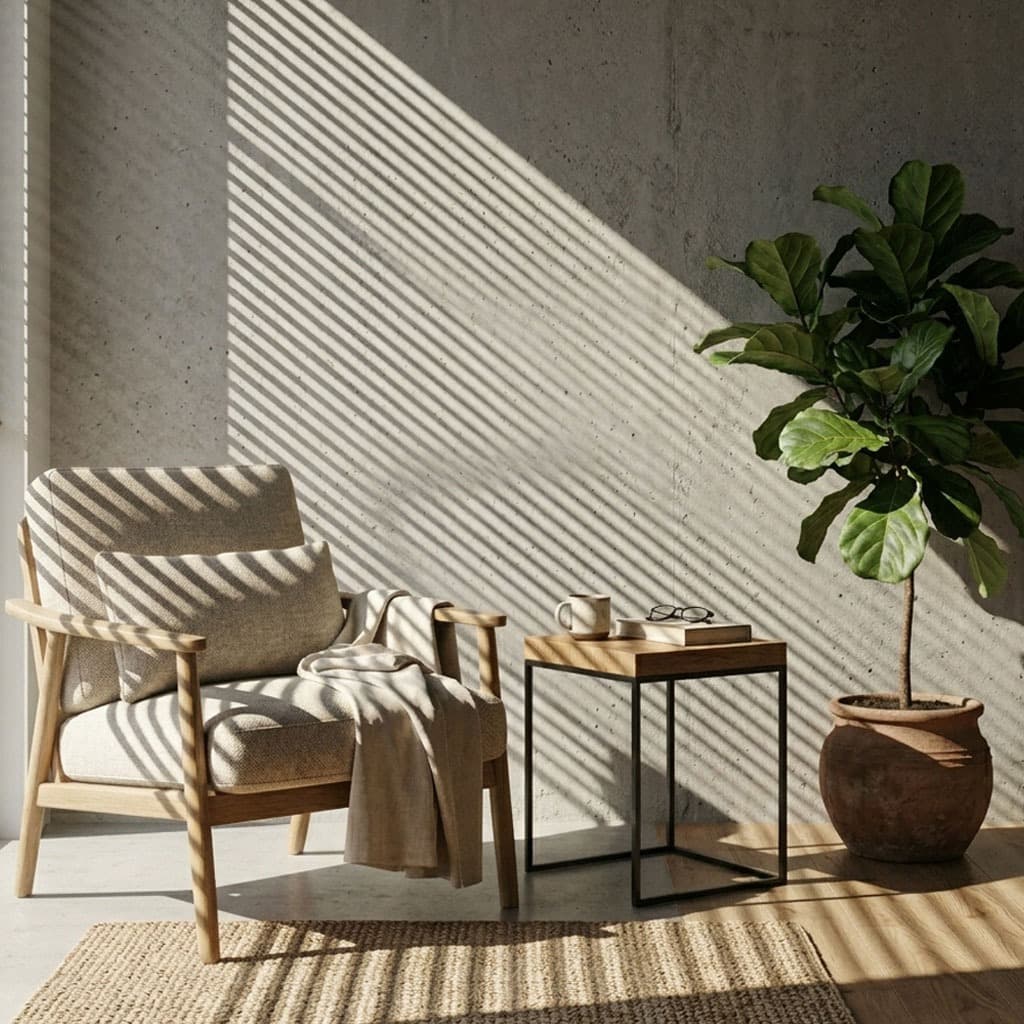
Autodesk Maya remains the undisputed heavyweight champion in the VFX, animation, and feature film industries. When lighting scenes in Maya, especially when utilizing the Arnold renderer (MtoA), achieving cinematic realism is the primary goal. Lighting in film is rarely perfectly even; it is broken up by the environment. Using gobos to simulate this environmental light break-up is a standard practice on every major production.
The Role of Gobos in VFX
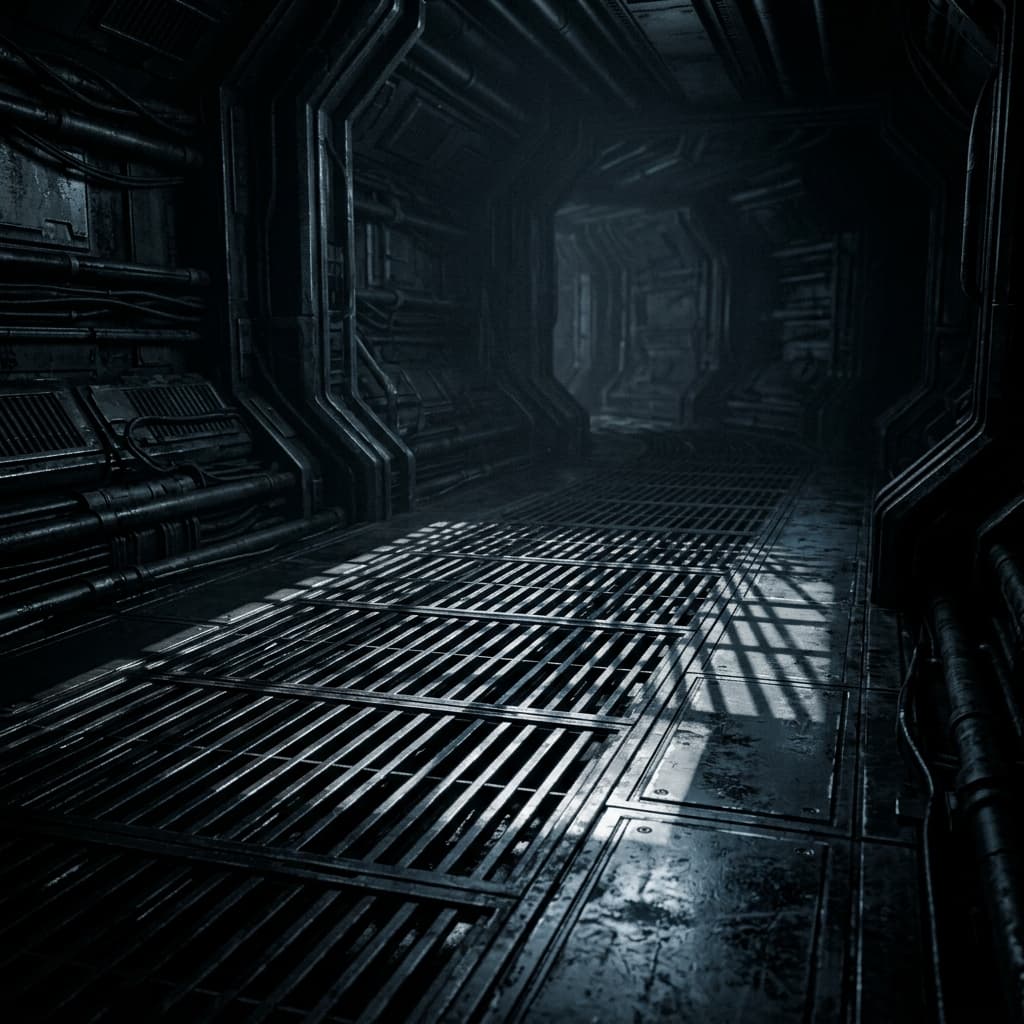
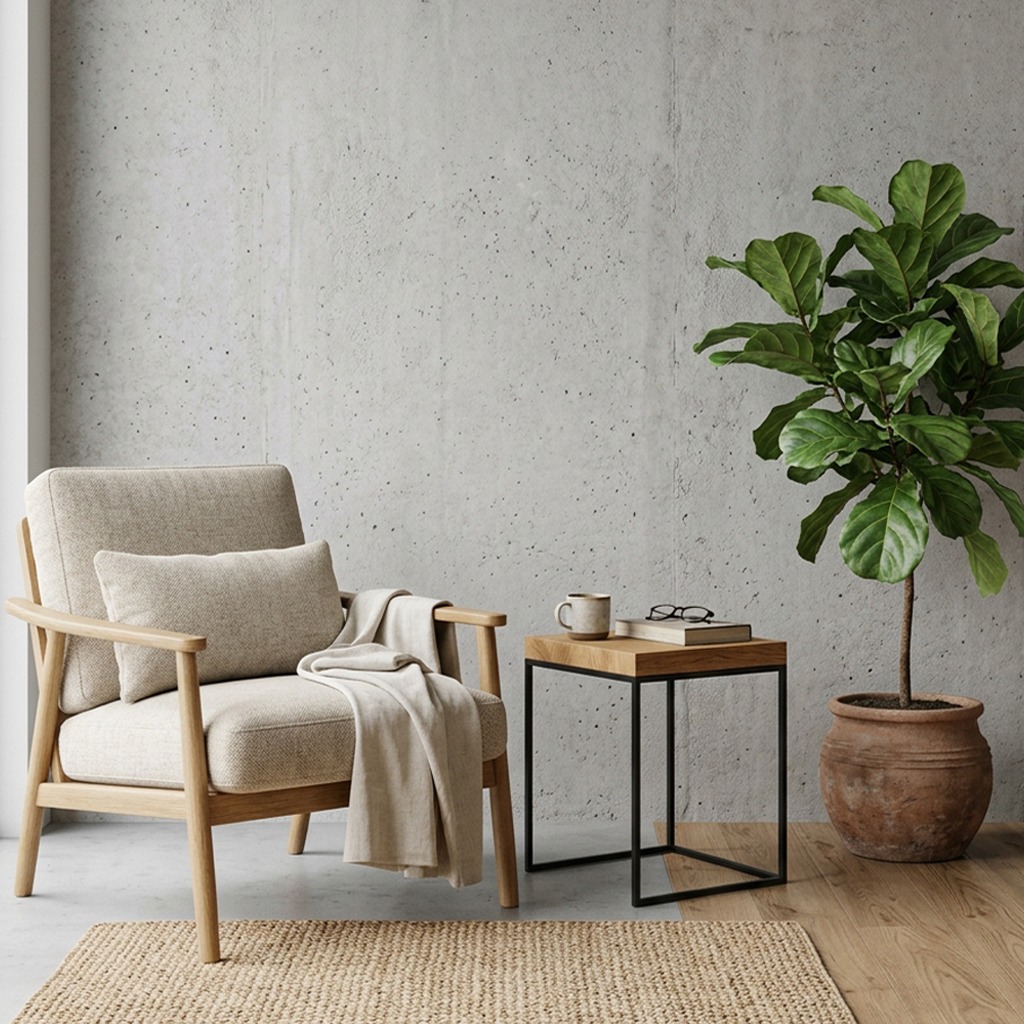
A gobo acts as a stencil for your light sources. Imagine you are lighting an interrogation room scene. Instead of building a complex window frame, hanging blinds, and calculating the dense raytraced shadows through the geometry, you can simply project a gobo texture through a single Arnold light. This dramatically reduces render times while offering the lighting artist infinite, non-destructive control over the shadow's shape and intensity.
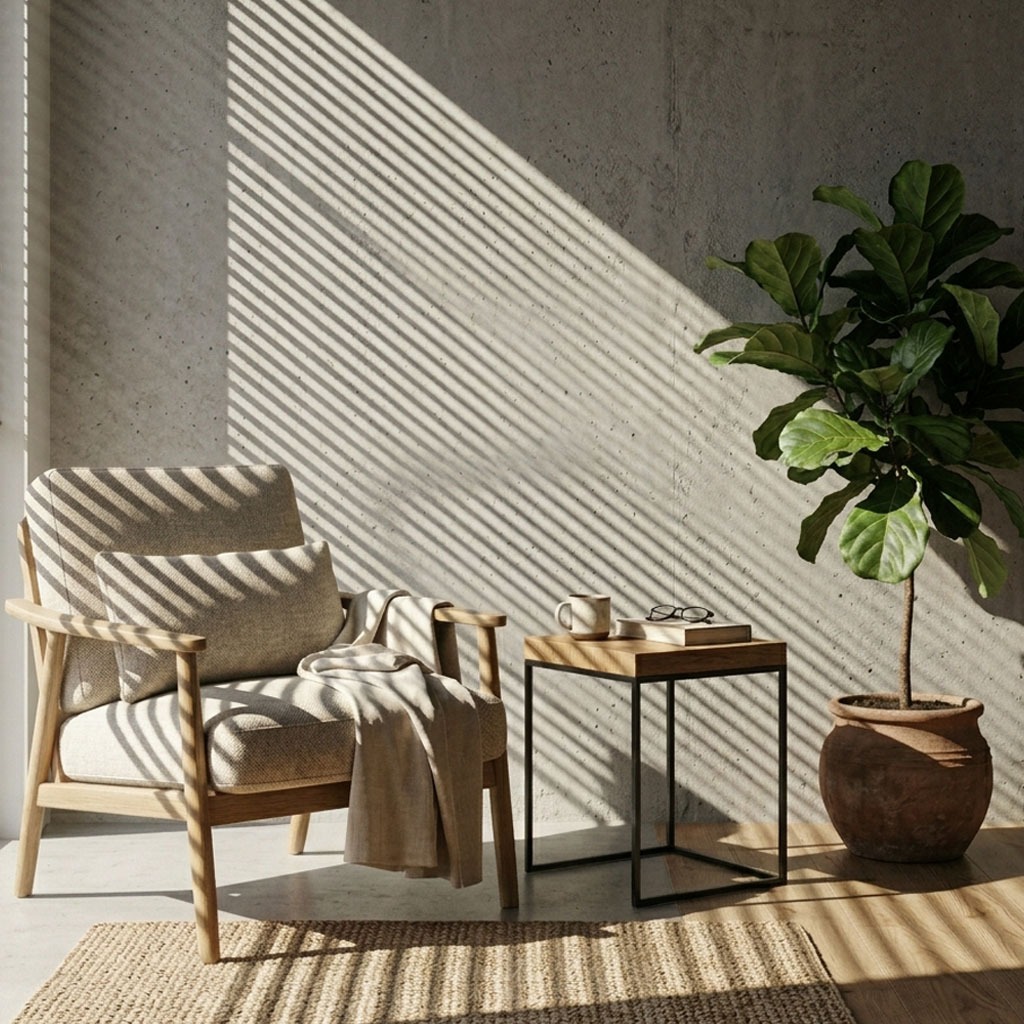
Using the aiGobo Filter in Arnold
Arnold makes working with gobos incredibly intuitive through its dedicated light filter system. Here is the exact workflow for projecting a GoboVault texture in Maya:
- Create a Spotlight: Go to the Arnold menu -> Lights -> Spot Light. Place it in your scene and aim it at your subject. Note that gobos work best with Spot Lights because they have a defined cone of projection, mimicking a physical stage projector.
- Add a Light Filter: Select the Spot Light and open the Attribute Editor. Scroll down to the Light Filters section. Click the Add button and select aiGobo.
- Configure the aiGobo: Double-click the newly created aiGobo filter to access its attributes. You will see a slot named Slide Map. This is where your texture goes.
- Load a Texture: Click the checkerboard icon next to Slide Map and choose a File node. Load a high-resolution PNG gobo from the GoboVault library. Crucial Step: Ensure the Color Space of the file node is set to Raw or Utility - Linear - sRGB. Using a standard sRGB color space will clamp the dynamic range of the gobo and result in unrealistic, washed-out shadows.
Tuning the Projection
Once your gobo is loaded, you have a wealth of options within the aiGobo filter to fine-tune the look:
- Density: Controls the overall opacity of the gobo pattern. Lowering this will allow some of the base light to bleed through the black areas of the texture.
- Filter Mode: You can choose how the texture is mixed with the light's color. Using the Multiply mode is standard for realistic physical shadows.
- S / T Wrap: If your gobo is seamlessly tileable (which many organic GoboVault textures are), you can adjust the scale and wrapping to repeat the pattern across a massive environment.
Why High-Quality Formats Matter
Arnold is a physically-based, linear path tracer. Feeding it compressed, low-quality JPEGs often results in stepping, banding, and inaccurate light falloff. This is why the GoboVault library provides every single texture in uncompressed, high-resolution PNG format. These files contain immense detail, ensuring that the gradient falloff of a shadow is mathematically perfect, resulting in flawlessly smooth renders.
Access the ultimate cinematic lighting toolkit for your Maya pipelines by subscribing to GoboVault today.