In the world of game development, balancing visual fidelity with performance is a constant battle. Unity’s High Definition Render Pipeline (HDRP) offers cutting-edge lighting features, but rendering highly detailed, dynamic shadows from complex geometry is still one of the most expensive operations on the GPU. The solution? Gobos—or as Unity refers to them, Light Cookies.
What is a Light Cookie?
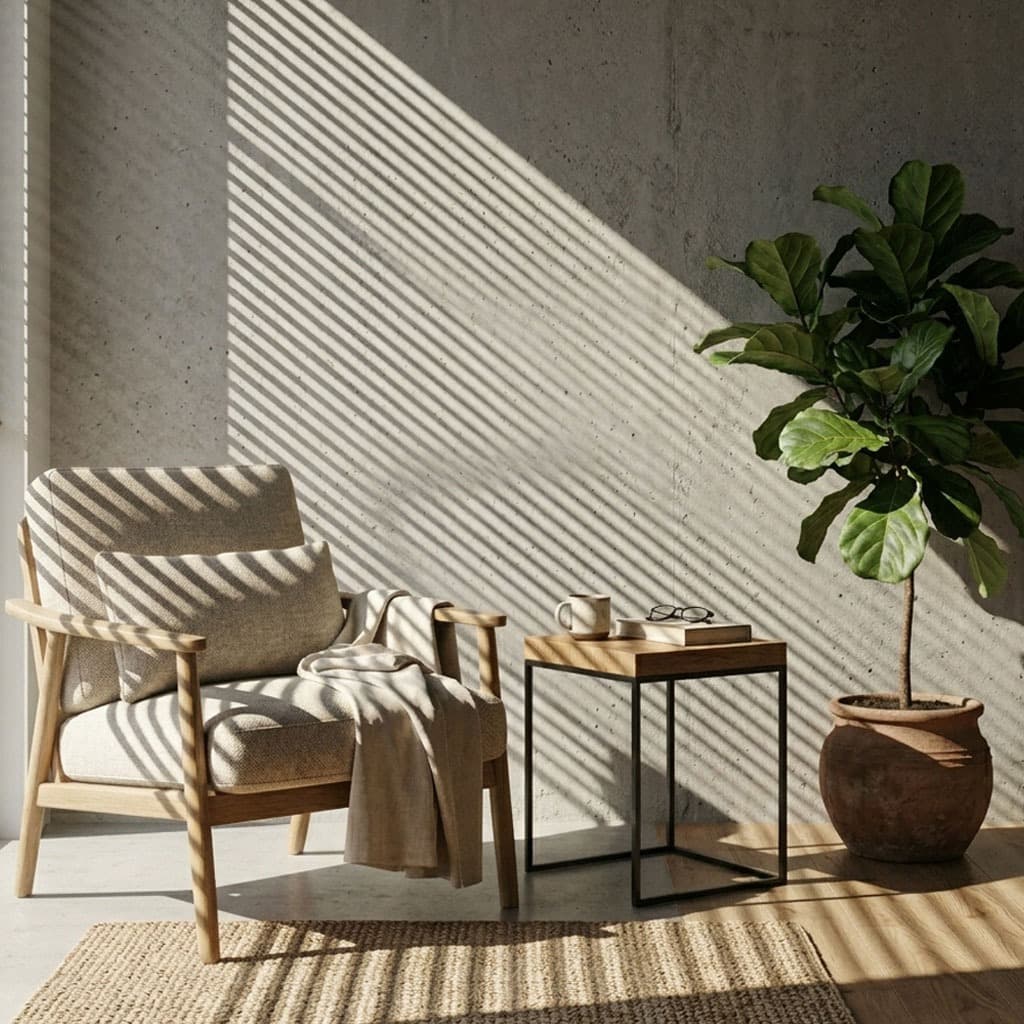
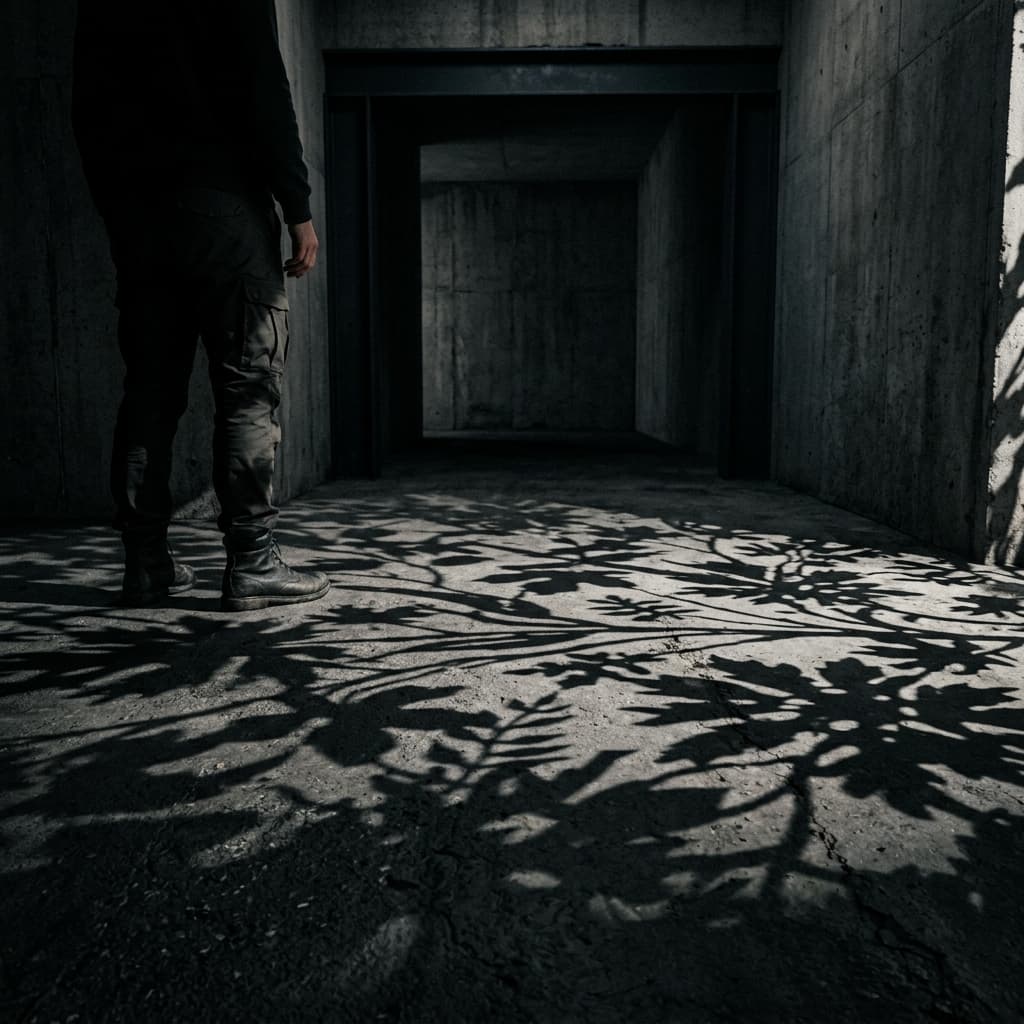
A Light Cookie is a 2D texture applied to a light source that masks its intensity, projecting a pattern onto the environment. It acts exactly like a physical gobo on a stage light. Whether you need to simulate a flashlight beam, the headlights of a car, a disco ball, or sunlight filtering through a dense jungle canopy, Light Cookies are the most performant way to achieve it.
Importing Textures for HDRP
To use GoboVault's premium textures in Unity HDRP, you must import them with the correct settings:
- Download and Import: Download the high-resolution PNG versions of your chosen gobos from GoboVault and drag them into your Unity Project window.
- Change Texture Type: Select the imported texture. In the Inspector, change the Texture Type from "Default" to Cookie.
- Light Type: Specify the Light Type you intend to use this cookie with. For Directional lights (like the sun), choose Directional. For Spotlights, choose Spot.
- Alpha Source: Ensure the Alpha Source is set to "From Gray Scale". Since gobos are black and white images, Unity needs to convert the luminance of the image into transparency data.
- Apply: Hit the Apply button at the bottom of the inspector to process the texture.
Applying Cookies to Lights
With your texture properly configured, placing it in the scene is a breeze. Create a Spot Light in your HDRP scene. In the Light Inspector, look for the Cookie section.
Drag your configured texture into the Cookie slot. You will immediately see the pattern projected into your scene. HDRP provides additional controls, allowing you to adjust the size of the cookie projection independently from the light's range, providing immense flexibility for level designers.
Simulating Sunlight and Cloud Shadows
One of the most powerful uses of Light Cookies is applying them to the main Directional Light to simulate cloud cover. By taking a seamless, organic noise texture from GoboVault, applying it as a Directional Cookie, and writing a simple C# script to slowly pan the texture offset over time, you can create a highly realistic, dynamic cloud shadow system that covers your entire open-world map with virtually zero performance overhead.
Get the GoboVault Library
GoboVault features hundreds of textures categorized into abstract, architectural, organic, and utility patterns perfectly suited for Unity Light Cookies. Stop wasting your frame budget on complex shadow casters. Download the library today and optimize your Unity HDRP environments without sacrificing visual quality.